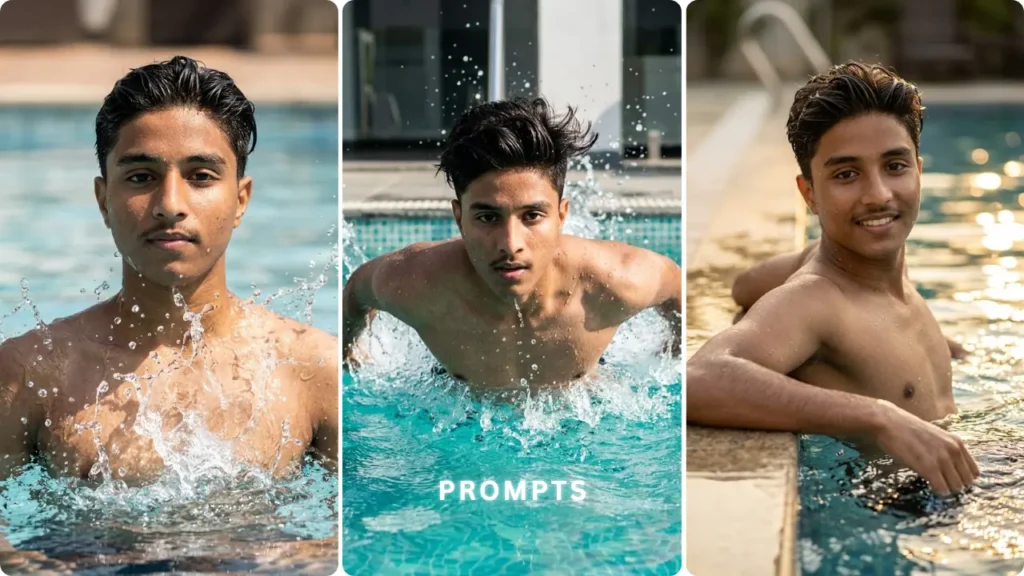
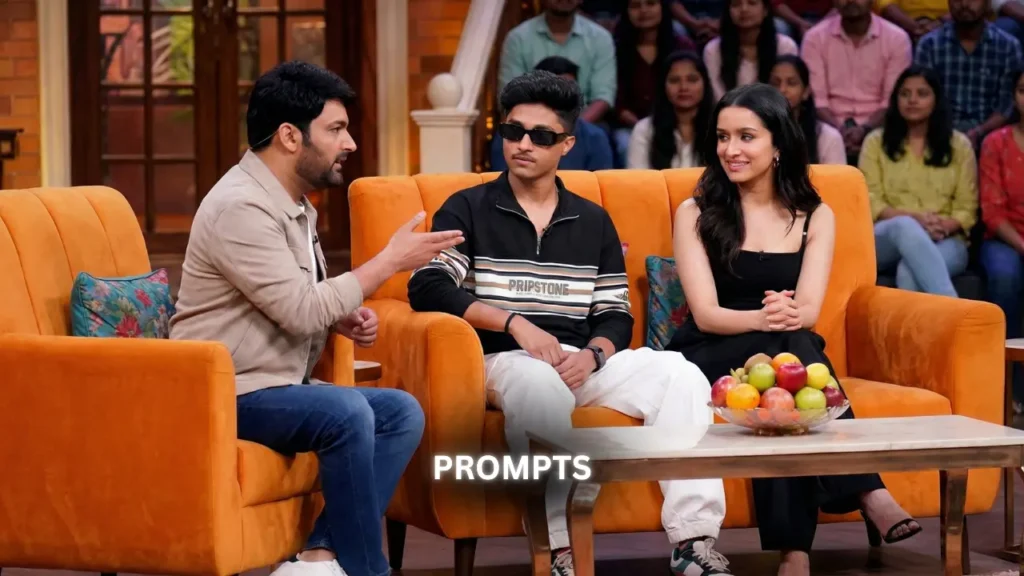
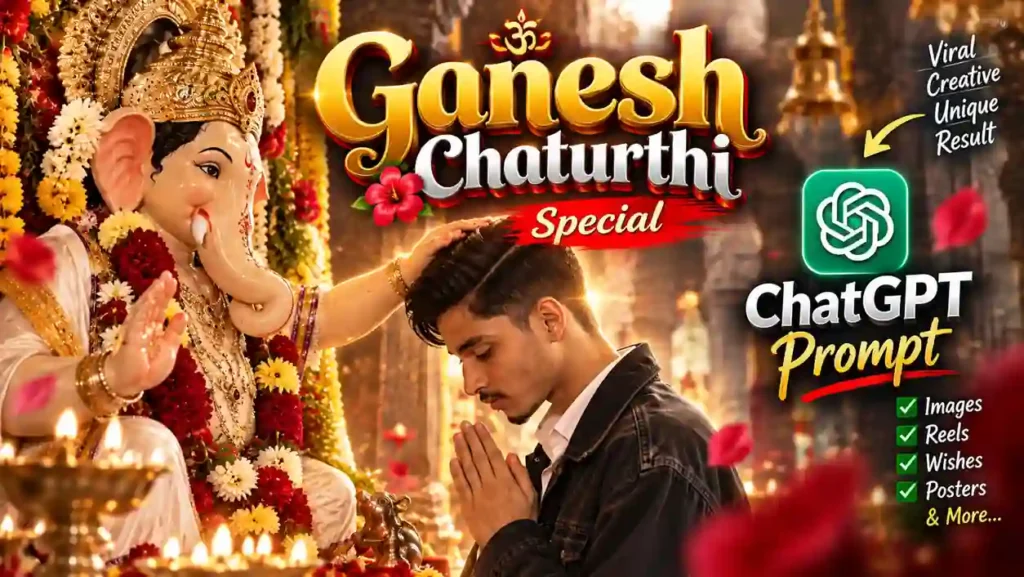
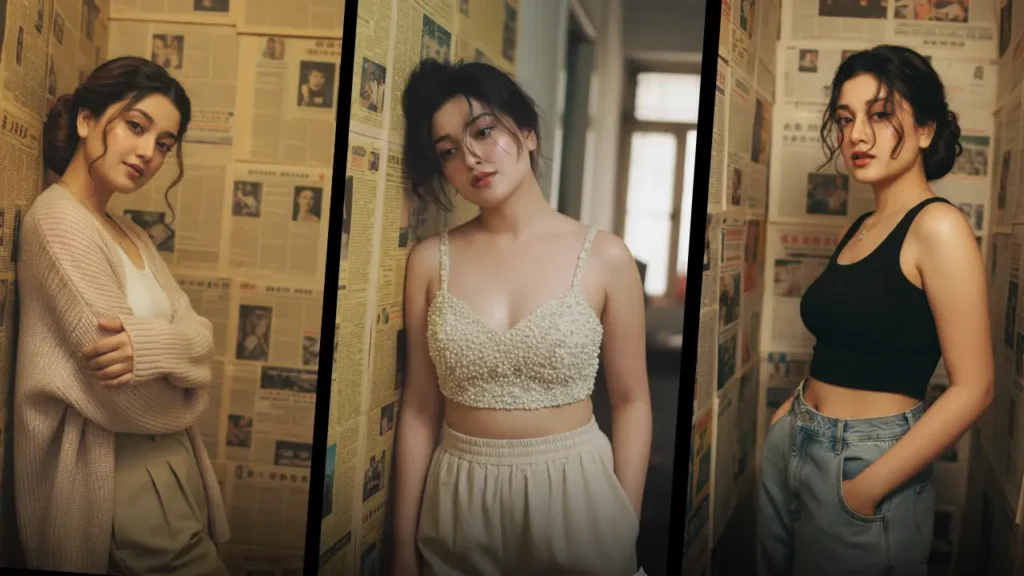
I came across these kinds of cinematic AI fighting videos while scrolling through Instagram Reels — dramatic underground arena scenes, glowing eyes, wolf energy, Bollywood-Hollywood hybrid action. The prompts people were sharing online gave average results — characters moved unnaturally, physics were broken, the continuity between scenes was completely off. So I studied what was wrong, added proper logic and physics descriptions, broke the scene into three structured parts, and rebuilt the entire prompt from scratch. The final result was significantly better than anything I had seen on social media. This is that prompt — and a complete guide to using Google Flow’s Gemini Omni Flash Avatar tool to create your own cinematic fighting video with your own face.
What Is Gemini Omni Flash and Why It Changes Everything
Google introduced Gemini Omni at Google I/O 2026 — a new multimodal model family from Google DeepMind designed to generate and edit video from any combination of image, audio, video, and text inputs.
The first version, Gemini Omni Flash, went live on May 19, 2026 in the Gemini app, Google Flow, and YouTube Shorts — with clips capped at 10 seconds by design, not technical limits.
What makes this different from every other AI video tool is the Avatar feature. Users can create videos with their own digital avatars — the avatar gets stored for future use after a one-time verification process. To prevent deepfakes, users have to go through a dedicated product onboarding which involves recording themselves and speaking out a series of numbers.
Every Omni-generated video carries an invisible SynthID watermark — part of Google’s push to make AI content identifiable at scale.
In simple terms — you create your avatar once, verify it once, and then use it in any video prompt going forward. Your face, your digital likeness, in a cinematic fighting scene. That is exactly what this article is about.
How to Set Up Google Flow and Create Your Avatar
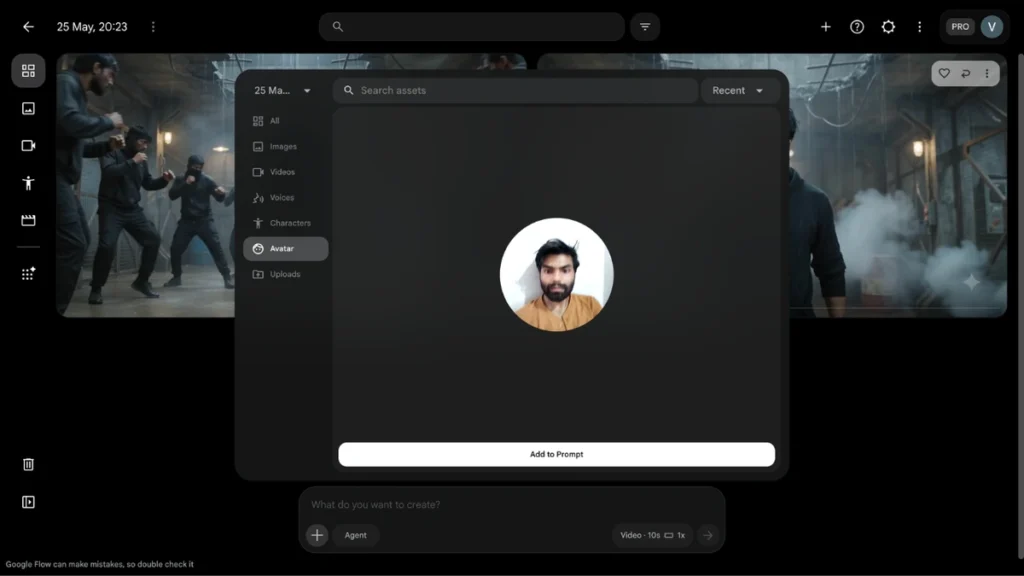
Step 1 — Open Google Flow
Go to labs.google/fx/tools/flow — this is Google’s dedicated AI video creation studio. Flow is where the real workflow surfaces live — multi-clip composition, ingredient libraries, custom voices, and edit-on-existing-video. Google AI Plus, Pro, and Ultra subscribers get full access. Free users can access Omni Flash via YouTube Shorts.
Step 2 — Create and Verify Your Avatar
In Google Flow, go to the Avatar section. If you have not verified your avatar yet — the tool will ask you to record a short video of yourself reading a series of numbers aloud. This verification step is Google’s built-in protection against deepfakes — it confirms you are creating an avatar of yourself.
Your avatar description should be specific — here is the one used for this fighting scene:
“My avatar as Indian male college student hero. Messy wet black hair, athletic body, black hoodie torn and damaged, bruised face, glowing red eyes, emotional rage expression.”
The more specific your avatar description, the more consistent your character will look across all three video parts.
Step 3 — Select Gemini Omni Flash
After your avatar is set up — in the generation settings, select Omni Flash as your model. The Google Flow support documentation lists features exclusive to this model — 10-second clips, uploaded-video editing, and custom voice creation. Select 5 seconds per clip for the tightest, most cinematic output.
Step 4 — Generate Three Videos Separately
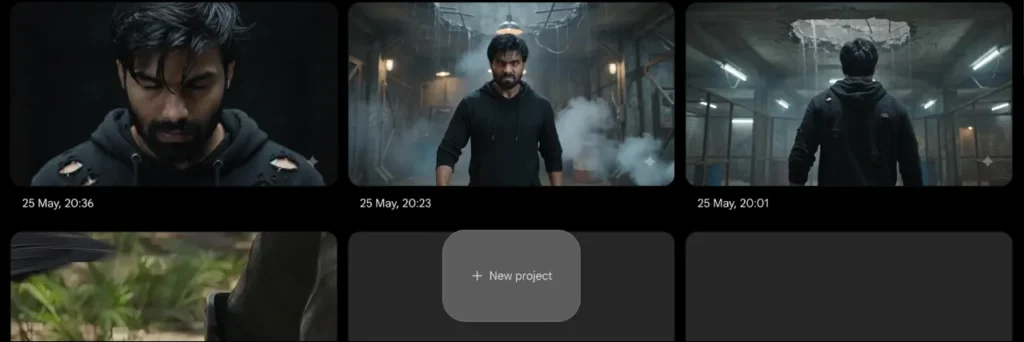
This fighting scene is built across three parts — each part is a separate video generation. Paste Part 1, generate. Paste Part 2, generate. Paste Part 3, generate. Each generation uses your stored avatar automatically — no need to re-upload your face.
Step 5 — Merge All Three Videos
Once all three clips are generated, use Google Flow’s merge feature or any basic video editor — CapCut, InShot, or VN — to join all three clips into one complete fighting scene. The result is a full cinematic sequence with consistent character appearance throughout.
The Complete 3-Part Fighting Scene Video Prompt
Important before using: Replace the avatar description at the start of each part with your own avatar description — height, hair, skin tone, outfit. The more accurately you describe yourself, the more consistent your character will be across all three parts.
Part 1 — The Arena Entry
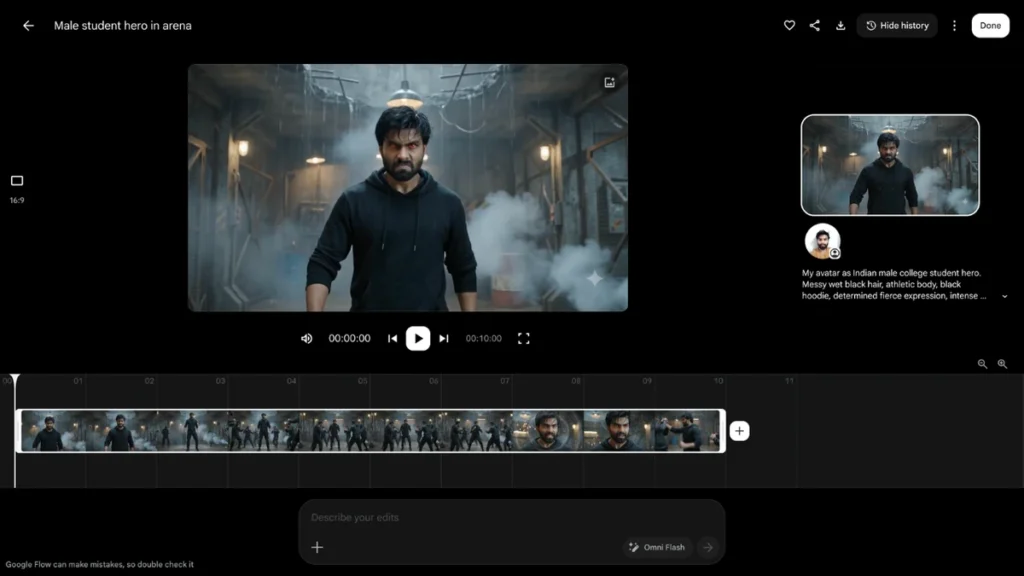
My avatar as Indian male college student hero. Messy wet black hair, athletic body, black hoodie torn and damaged, bruised face, glowing red eyes, emotional rage expression.Scene: Hero walks alone into a massive dark underground illegal fight arena. Rain water dripping from broken ceiling. Flickering broken lights. Smoke in air. Metallic cages around. Multiple dangerous dark fighters slowly surround Hero from all sides. Hero stops. Eyes glow red. Far away — a frightened college girl is tied inside the arena. Hero sees her.Style: Photorealistic cinematic, dark dramatic lighting, IMAX atmosphere, Hollywood action, vertical 9:16 format.
Part 2 — The Fight
My avatar as same Indian male college student hero. Wet black hair, damaged black hoodie, bruised face, glowing red eyes.Scene: Brutal underground fight. Multiple fighters attack Hero together using punches and kicks aggressively. Hero dodging with savage animal-like reflexes, fighting back hard. Hero getting overwhelmed by too many enemies. Blood on face. Heavy breathing. Suddenly gang leader in black leather jacket hurts the tied girl. Hero freezes. Complete silence. A deep wolf growl echoes through the arena.Style: Photorealistic cinematic combat, heavy dark atmosphere, emotional intensity, IMAX Hollywood action, vertical 9:16 format.
Part 3 — The Rage Awakening
My avatar as same Indian male college student hero. Wet black hair, damaged black hoodie, bloody bruised face, eyes now blazing bright red.Scene: Hero’s rage completely explodes. Bright red glowing eyes. Sudden wind erupts across entire arena. Lights flickering violently. Hero’s fingers slowly forming sharp claw-like shape. All fighters step backward in fear. Hero attacks with terrifying beast speed — fighters thrown violently across arena. During lightning flashes — a giant shadow wolf silhouette appears behind Hero. Hero roars loudly. Red glowing eyes shine through complete darkness. Slow fade to black.Style: Cinematic supernatural rage awakening, wolf transformation energy, dark dramatic lighting, photorealistic action, emotional blockbuster atmosphere, IMAX visuals, vertical 9:16 format.
Why This Prompt Is Built in 3 Parts — And Why Most People Get It Wrong
The biggest mistake people make with AI fighting videos is trying to put everything into one prompt. The result is a chaotic, physics-broken clip where the character teleports, the scene jumps, and the continuity is completely lost.
Three Parts = Three Emotional Beats
Each part of this prompt serves a specific dramatic purpose. Part 1 is the setup — establishing the threat and the stakes. Part 2 is the conflict — the overwhelm and the breaking point. Part 3 is the explosion — the supernatural rage awakening. These three beats follow the same structure as every great action movie climax.
Physics Logic in Every Scene
The original prompts circulating on social media skipped physics descriptions entirely. Phrases like “savage animal-like reflexes,” “fighters thrown violently across arena,” and “sudden wind erupts” give the AI specific physical behaviors to generate — rather than leaving it to improvise, which is where broken animations come from.
Consistent Avatar Description
Every part begins with the same avatar description — “same Indian male college student hero, wet black hair, damaged black hoodie, bruised face, glowing red eyes.” This consistency instruction is what makes the character look like the same person across all three clips. Without it, the AI generates a slightly different-looking person in each part.
“Slow Fade to Black” — The Cinematic Ending
The third part ends with “slow fade to black” — a specific cinematic instruction. Without this, AI video generators tend to cut abruptly. The fade gives the final merged video a complete, finished feel rather than a hard stop.
Emotional Escalation
Each part escalates the emotion deliberately — from “emotional rage expression” to “intense” to “blazing bright red eyes” and finally “roars loudly.” This escalating emotional language tells the AI to increase intensity with each generation — producing a complete dramatic arc when all three clips are merged.
How to Merge Your 3 Videos Into One Complete Scene
After generating all three clips in Google Flow — here is the fastest way to merge them:
Option 1 — Google Flow (Built-in) Google Flow has a multi-clip timeline — drag all three clips onto the timeline in order — export as one video.
Option 2 — CapCut (Mobile — Free) Import all three clips → arrange in order → export. Takes under 2 minutes. Best for Instagram Reels format — CapCut handles 9:16 vertical perfectly.
Option 3 — VN Video Editor (Mobile — Free) Same process as CapCut — import, arrange, export. Add a dramatic music track underneath for maximum impact.
Pro tip: Add a subtle transition between Part 2 and Part 3 — a flash cut or a half-second black frame — to mark the moment the rage awakens. This small edit makes the emotional shift feel deliberate and cinematic.
Subscription — What Plan Do You Need
Free users do not get Omni Flash in the Gemini app. The free entry point is YouTube Shorts. Paid tiers start at AI Plus at $7.99 per month. Flow is where the real workflow surfaces live — multi-clip composition, ingredient libraries, custom voices, and edit-on-existing-video.
For serious video creation with the Avatar tool and full Google Flow access — AI Plus ($7.99/month) is the minimum. For consistent daily generation without credit limits — AI Pro is recommended.
Where to Post Your Fighting Scene Video
Instagram Reels — 9:16 vertical format is already built into these prompts. Post directly to Reels with a cinematic thumbnail. Fighting scene AI videos are among the highest-performing content categories on Indian Instagram Reels right now.
YouTube Shorts — YouTube Shorts users get free Omni Flash access — making it the natural platform to post and share Omni-generated content. Post your fighting scene as a Short and it will be recognized as Omni-generated content by YouTube’s systems.
Is Google Flow available in India?
Yes — Google Flow and Gemini Omni Flash are available worldwide including India. Gemini Omni Flash started rolling out to the Gemini app and Google Flow for Google AI Plus, Pro, and Ultra subscribers from May 19, 2026.
How long is each generated video clip?
Clips are capped at 10 seconds by design, not technical limits. Each of the three parts generates a 10-second clip — merged together you get approximately a 25-30 second complete fighting scene.
Do I need to verify my avatar every time?
No — the avatar gets stored for future use after the one-time verification process. Verify once and use it in unlimited future video generations.
Final Thoughts
I saw these cinematic AI fighting videos on Instagram and decided to figure out what made the good ones actually work. The prompts on social media were broken — wrong physics, inconsistent characters, abrupt endings. So I rebuilt the entire structure from scratch — three parts, emotional escalation, physics logic, consistent avatar description — and tested it repeatedly in Google Flow until the result was genuinely cinematic. The final output was better than anything I had seen on social media. If you have been wanting to create a fighting scene video with your own face — this is the complete guide to doing it properly.